
Setup guide
Animated walkthrough
See a QR label print from Safari.
Open the circular TCG Printer launcher, choose PRINT QR CODE, and follow the status from Printing... to Label printed.
The demo has no audio and stays still until you start it.
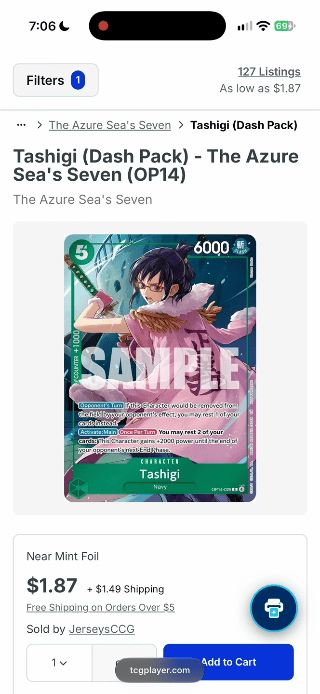
Read the demo transcript
The demo opens a TCGplayer Tashigi page, expands the circular TCG Printer launcher, selects PRINT QR CODE, shows Printing..., confirms Label printed., and collapses the launcher.
Before you start
Gather the supported pieces.
- An iPhone running iOS 17 or later
- A NIIMBOT D110 or D110_M printer
- One supported label roll
- A TCGplayer card or sealed-product page with a numeric product ID
Part 1
Connect and test the printer.
- 1
Power on the printer.
Keep it near the iPhone. Close the official NIIMBOT app so it does not hold the Bluetooth connection.
- 2
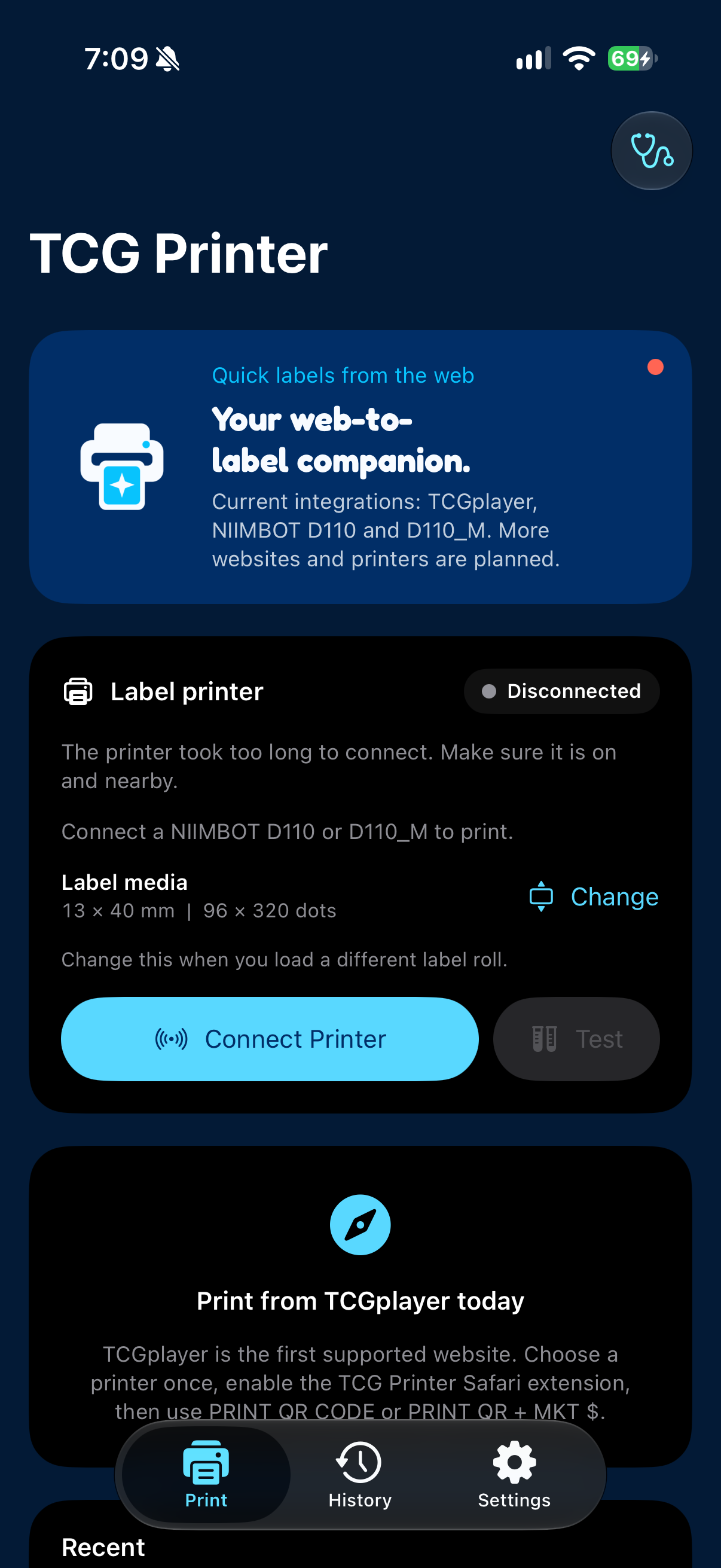
Open TCG Printer.
Allow Bluetooth access when iOS asks. Tap Connect Printer.
- 3
Choose D110 or D110_M.
Select the nearby supported printer and wait until the status reads Connected.
- 4
Match the label roll.
Open Label media and choose 12 × 40 or 13 × 40 mm. The recommended size is 13 × 40 mm, but always select the roll actually loaded.
- 5
Print a test label.
Tap Test. Confirm the orientation, density, media length, and physical feed before moving on.
Part 2
Enable TCG Printer in Safari.
- 6
Open Safari Extensions settings.
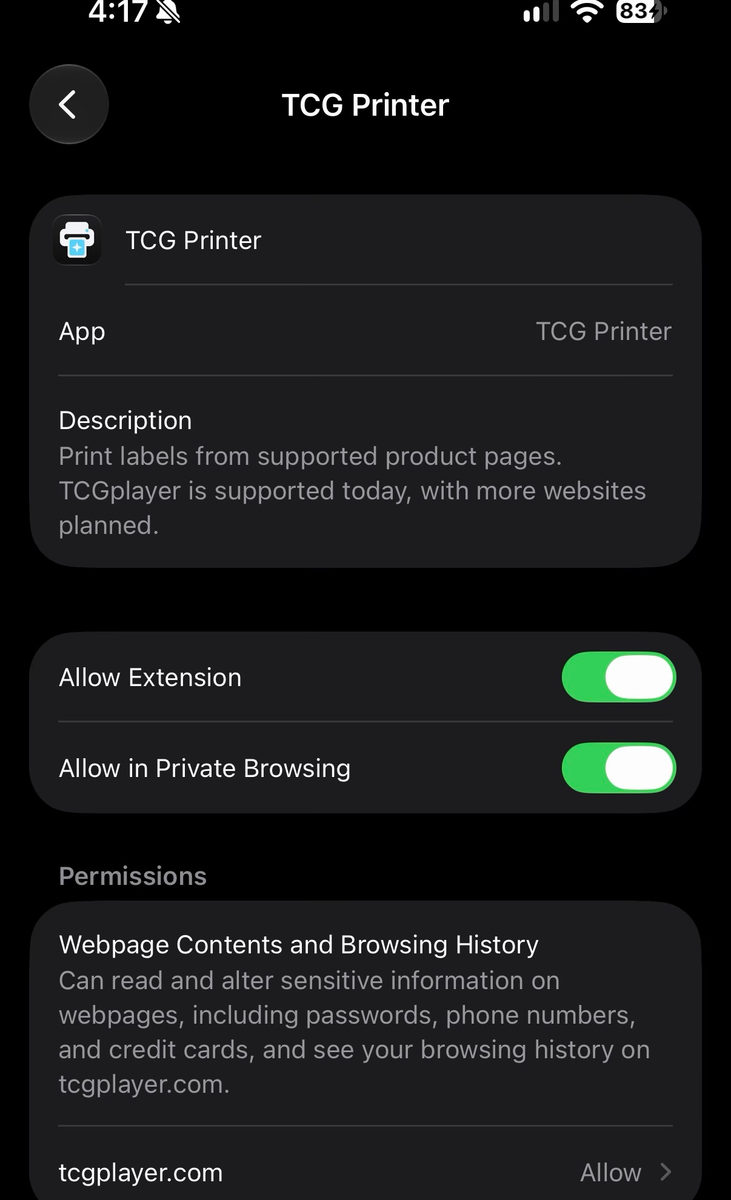
On iOS 18 or later, go to Settings > Apps > Safari > Extensions. On iOS 17, go to Settings > Safari > Extensions.
- 7
Turn on TCG Printer.
Allow the extension to access tcgplayer.com. It only activates on supported HTTPS product pages.
- 8
Open TCG Printer from Safari.
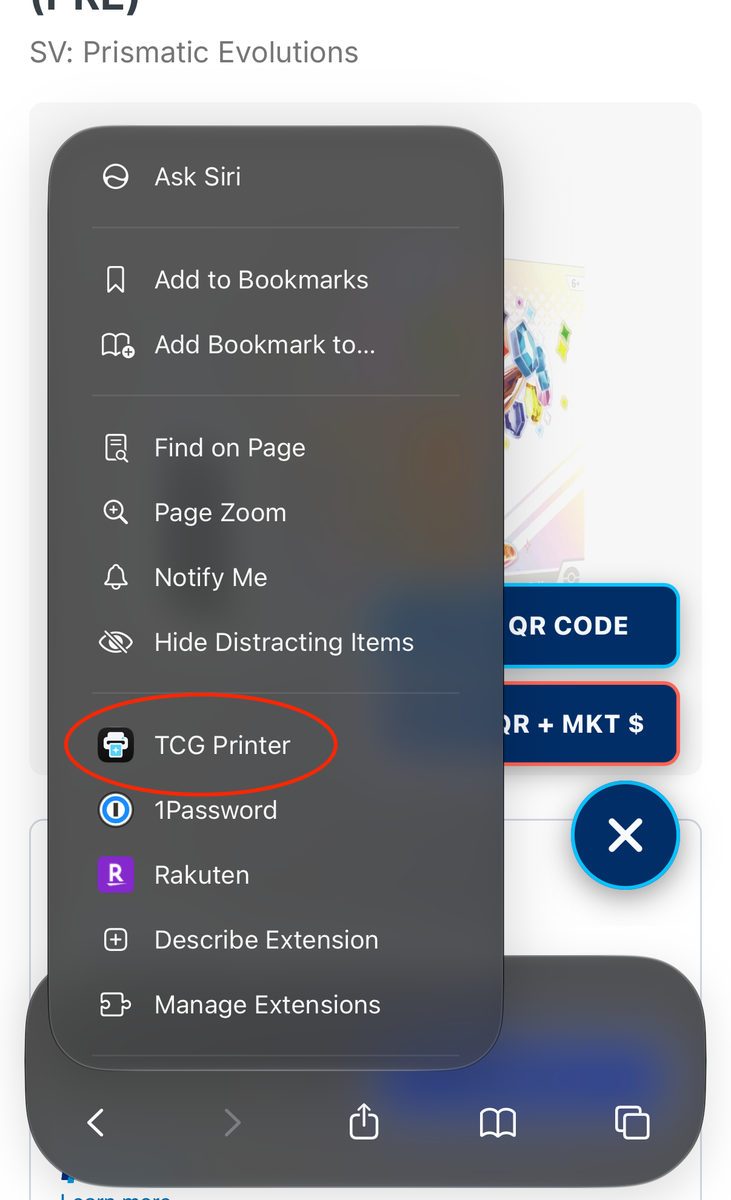
Return to a TCGplayer product page, open Safari's page menu, then tap TCG Printer. If it is hidden, choose Manage Extensions first.
- 9
Refresh older tabs.
If a TCGplayer tab was open before installing or updating the extension, refresh it once.
Part 3
Print from a product page.
- 10
Open a supported product page.
Use a TCGplayer card or sealed-product URL with a numeric product ID.
- 11
Open the launcher and choose the label.
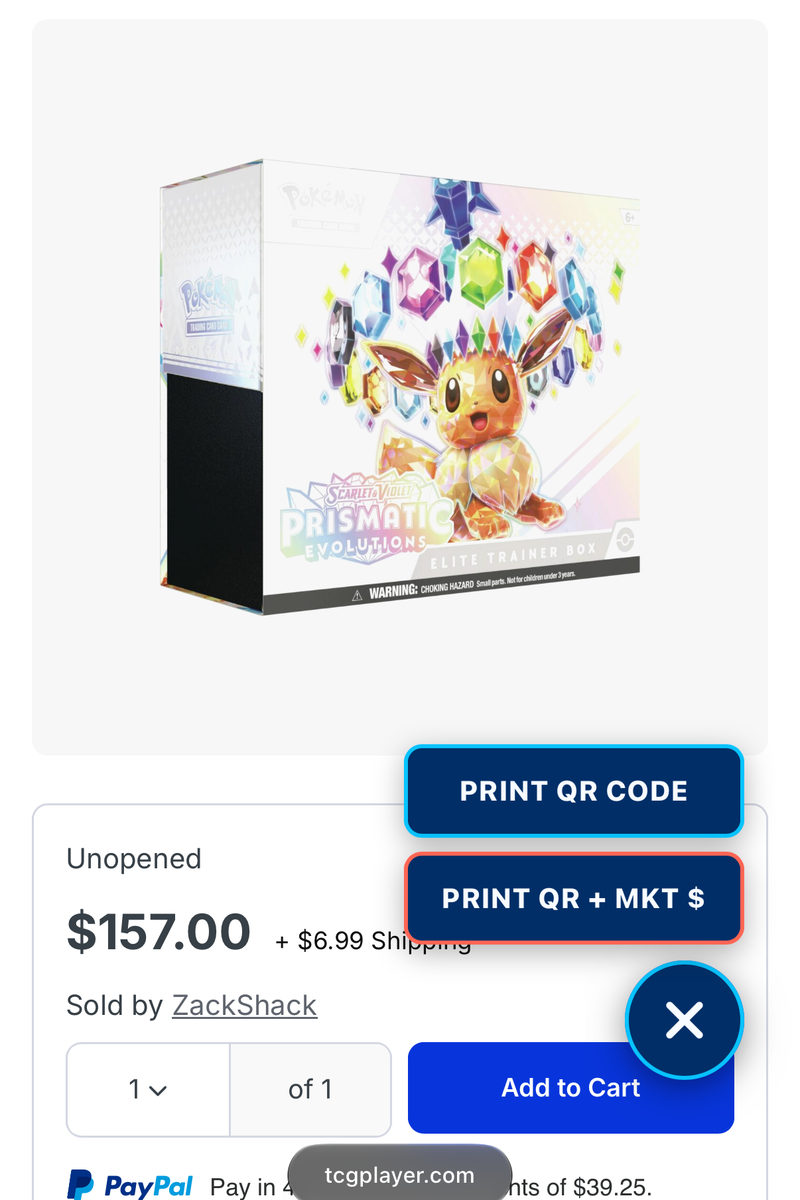
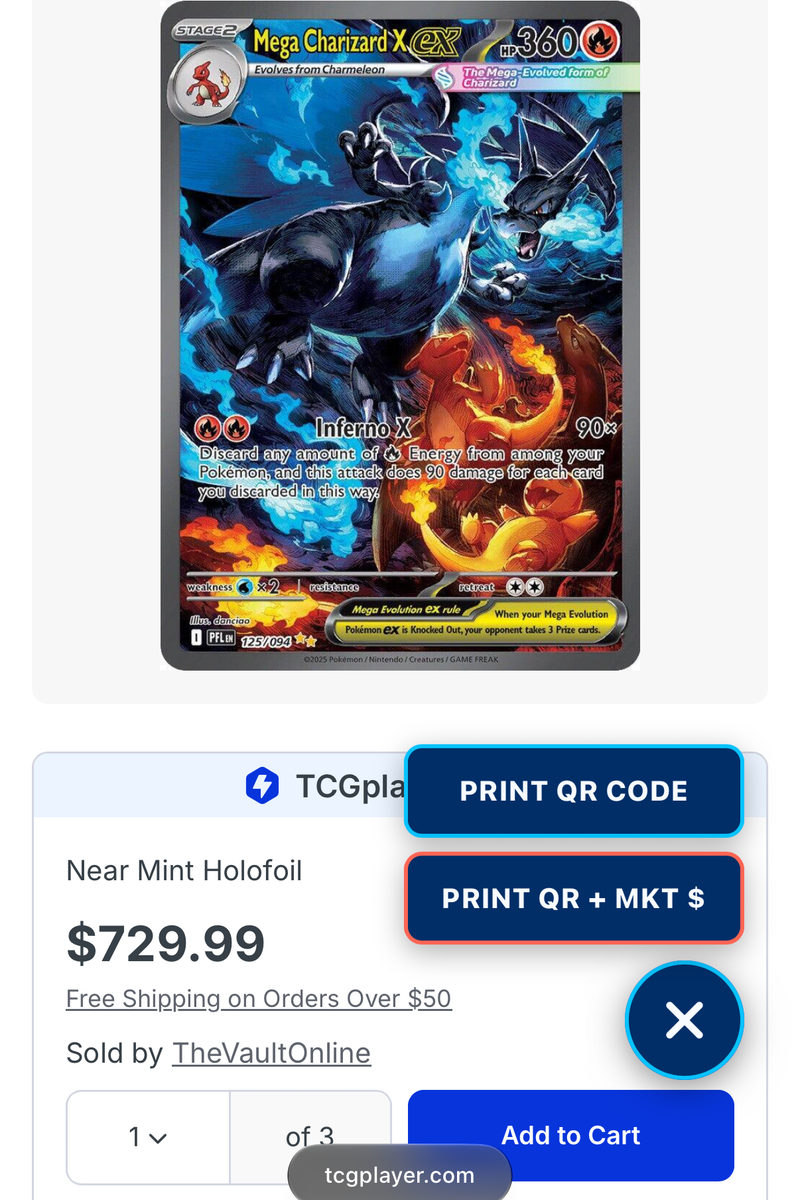
Tap the circular TCG Printer launcher over the bottom-right contact control. Then tap PRINT QR CODE for a clean QR label, or PRINT QR + MKT $ when the page exposes a supported condition and market price.
- 12
Wait for the result.
Keep the printer powered on and near the phone. If Safari says no printer is selected, reopen the app, reconnect the printer, then retry.
Safari actions
Choose the label right on the product page.
The extension starts as one circular TCG Printer launcher over TCGplayer's bottom-right contact control. Tap it to expand the two actions. These real iPhone captures identify the action choices on card and sealed-product pages.
Real physical results
From screen to label to collection.
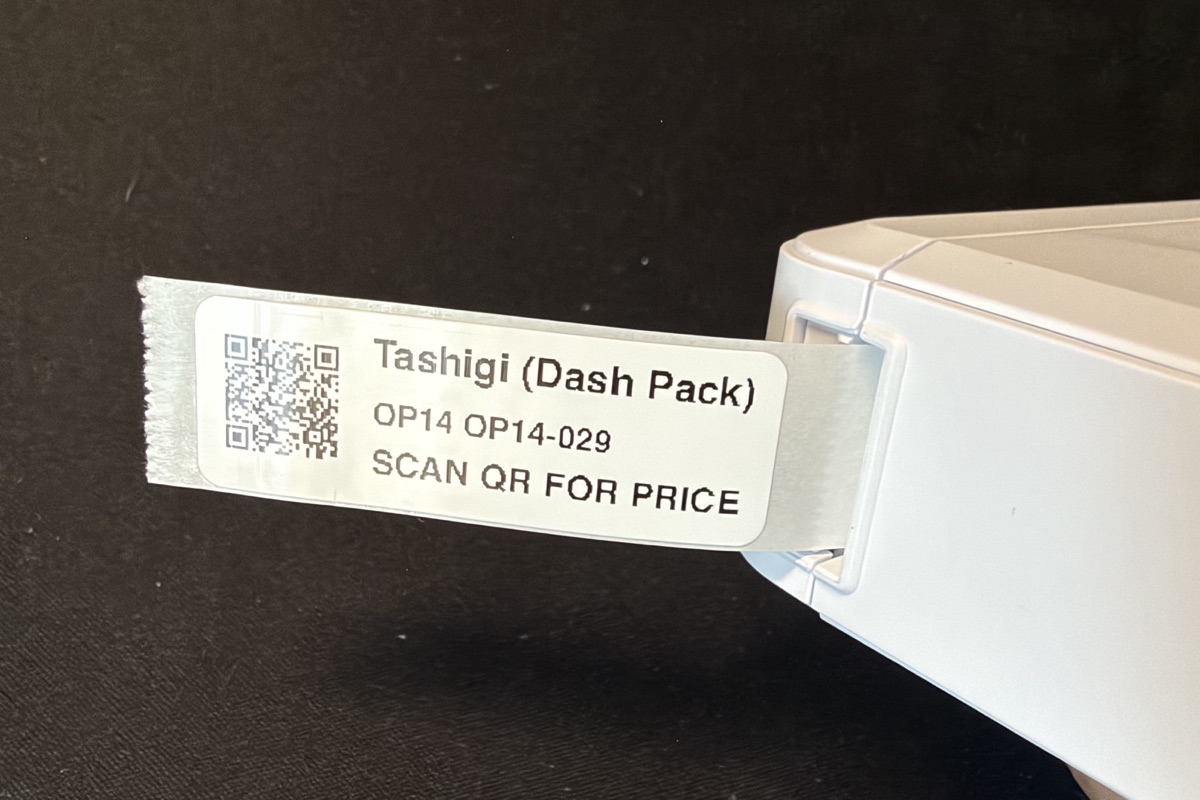
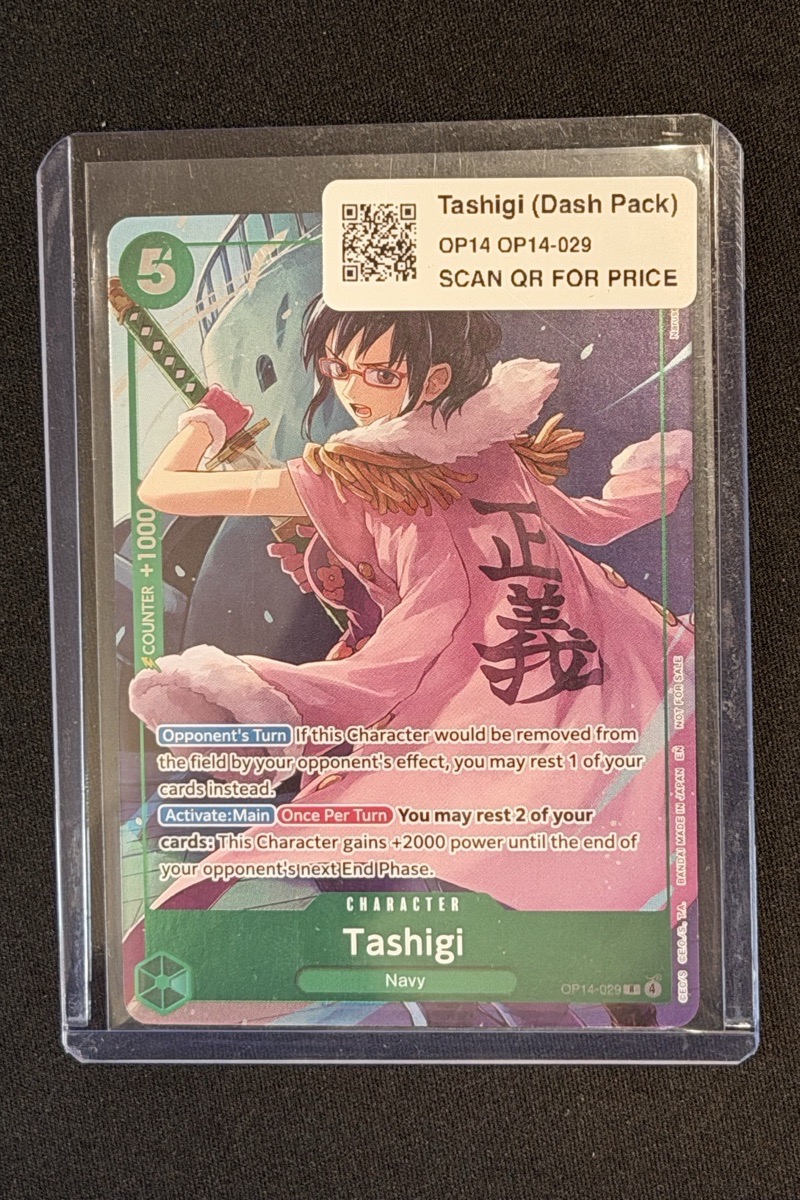
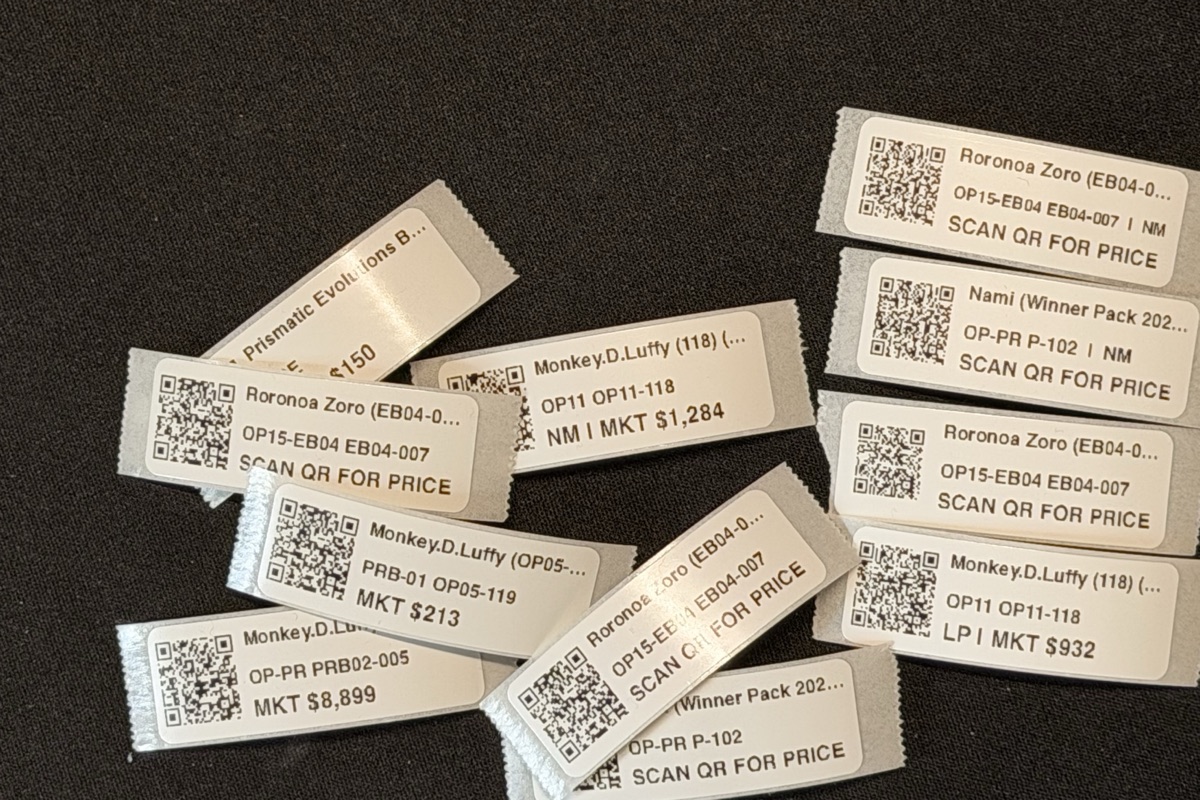
These are authentic D110_M prints made with TCG Printer. No label text, QR code, or product image was redrawn.
Print behavior
Know what each action prints.
| Product | Action | Printed result |
|---|---|---|
| Card | QR code | Product QR using Near Mint, without price |
| Card | QR + MKT $ | Product QR, selected condition abbreviation, rounded market price |
| Sealed | QR code | Product QR without condition or price |
| Sealed | QR + MKT $ | Product QR and rounded market price, without condition |
Supported card abbreviations are NM, LP, MP, HP, and DMG. Market prices are rounded to the nearest whole dollar.
Media
Choose the exact installed roll.
| Physical media | Printable raster | Layout |
|---|---|---|
| 12 × 40 mm | 96 × 320 dots | Full |
| 13 × 40 mm | 96 × 320 dots | Full · Recommended |
Something not working?
Use the focused troubleshooting checklist, export sanitized diagnostics, or send a support message.
Open Support